
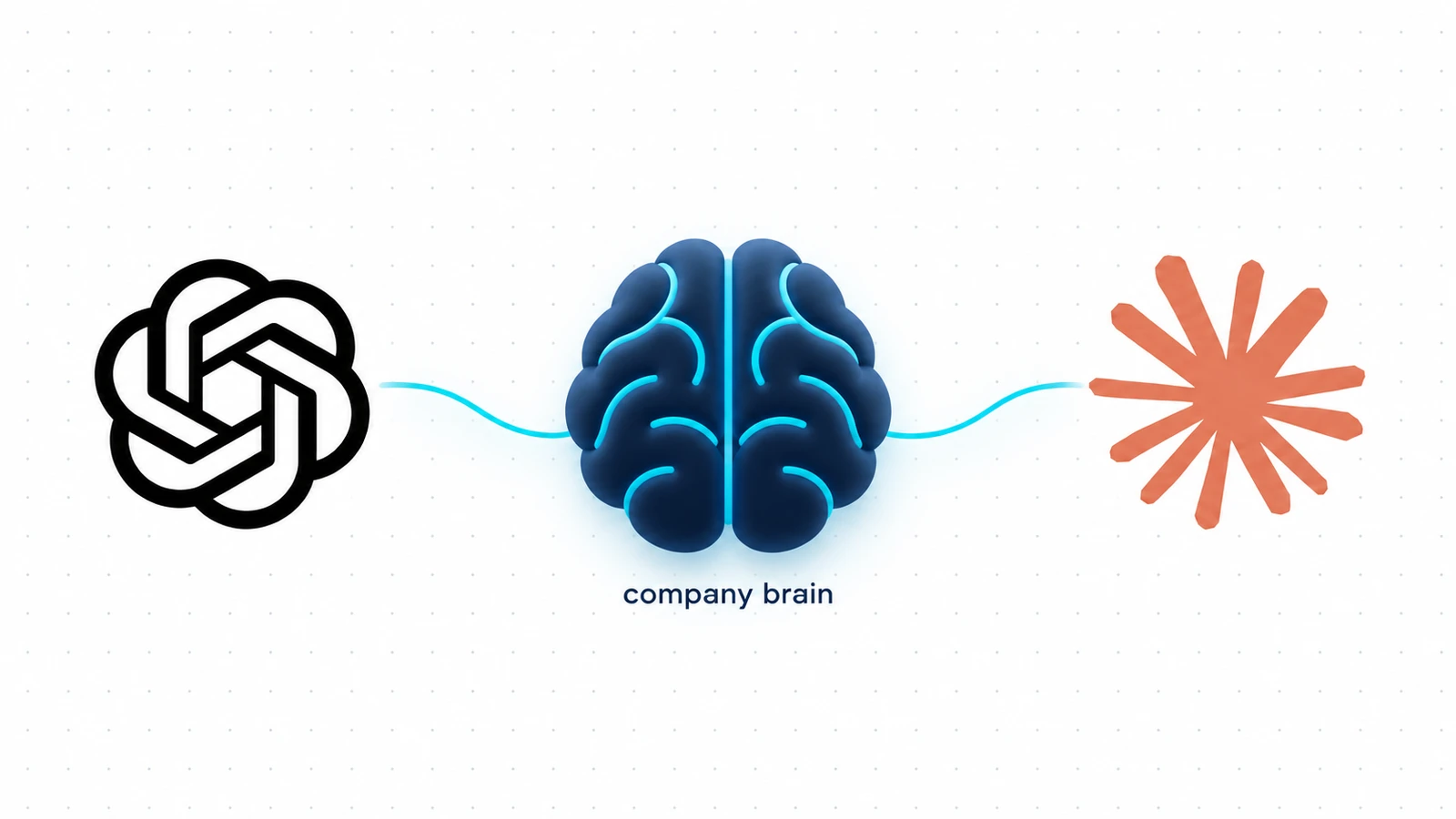
By now, you already use ChatGPT or Claude to write emails, untangle an idea or think through a decision on a project or work, besides getting the cooking recipe details in the meantime. And surely the conversation has gotten specific when it comes to work, where questions have been asked such as: Why is that project late? How many invoices have been issued? What was our biggest expense this year? Are clients paying?
If you are using these AI assistants without giving them the right context, without connecting them to something such as a “company brain” you’re opening tabs, spreadsheets, chasing emails and Slack channels and checking tasks and copying numbers into ChatGPT or Claude. By the time you’ve explained the company, you’ve done half the work yourself…
Well, now you can connect your AI assistant to one company brain: Aqtos BOSS*, and simply ask what you need, in text or voice: “Where are we with this project?” “Who’s off next week?” “What’s our biggest expense?” Your projects, people and money come together in one place. Then turn the answer into action: create a task, assign the follow-up or add an absence, right from the conversation.
For this setup, you need an active Aqtos BOSS* instance.
Don’t have one yet? Create your Aqtos BOSS* instance here →
Give your assistant the company context
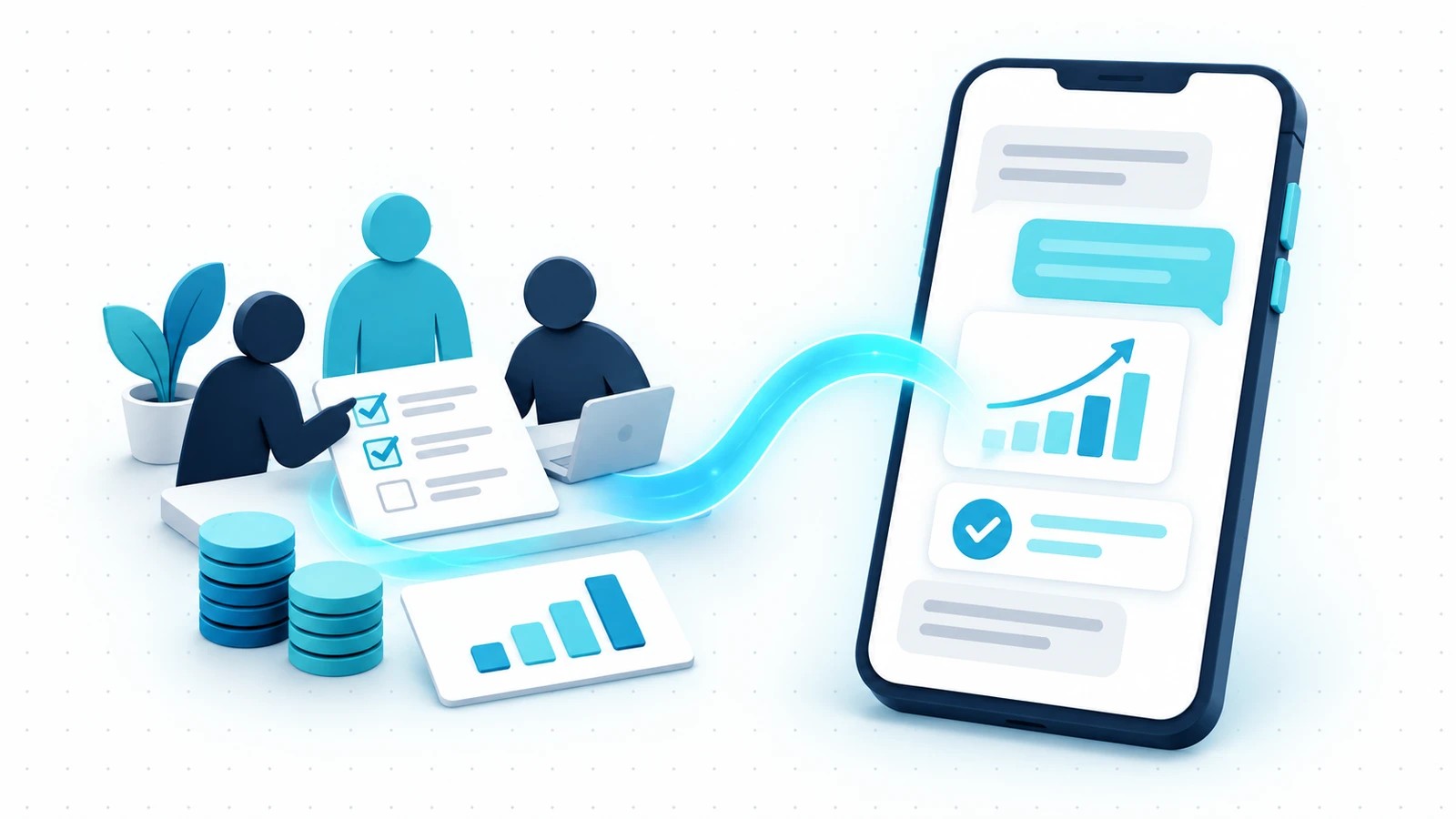
Context is the connected information behind an answer: your projects, the people working on them, deadlines, clients and money. BOSS* keeps that information together. Connect it to your assistant, and that context becomes part of the conversation.
The connection uses MCP (Model Context Protocol). You add your company’s instance address, sign in with OAuth, and enable the connection in your chat.
1. Get your Aqtos connection address
Use the subdomain you normally sign in to:
https://{instancename}.aqtos.io/api/mcp/Example: if you sign in at your-team.aqtos.io, enter https://your-team.aqtos.io/api/mcp/.
Hint: keep /api/mcp/ and the final slash. Paste this into the server URL field, not the chat. The MCP guide’s URL helper can prepare it for you.
2. Connect Claude
- On Claude’s web or desktop app, open Customize → Connectors → + Add → Add custom connector.
- Name it Aqtos BOSS and paste your complete server URL.
- Choose Continue, review the detected authentication settings and continue with OAuth. Select Add and finish the Aqtos sign-in when prompted.
- In your conversation, use + → Connectors to enable Aqtos.
Hint: you can also look for Aqtos in Claude’s connector directory. For Team or Enterprise, an authorized workspace owner or administrator must add the connector through Organization settings → Connectors first. Members then connect individually. Claude’s setup guide →
3. Connect ChatGPT
- On ChatGPT’s web app, open Plugins, then + → Add custom MCP server.
- Name it Aqtos BOSS. Under Connection, enter your endpoint as the Server URL and select OAuth.
- Read the custom-server warning. If you accept it, select I understand and want to continue → Create as a plugin.
- Complete Aqtos authorization when prompted, then find and install the resulting personal or workspace plugin.
- Start a new chat, type @ and choose your Aqtos plugin.
Hint: the official Aqtos ChatGPT directory listing is currently pending. These steps use a custom connection, where your account and workspace allow one. OpenAI’s setup guide →
4. Ask one small question first
Try: “Using Aqtos, list the projects I can access.” Check the answer against a familiar project in BOSS*. Then build from there:
- Check progress: “What’s unfinished in [project], who owns it, and when is it due?”
- Create work: “Create a task called [title] in [project] and assign it to [person].”
- Add an absence: “Add an absence for me from [start date] to [end date].”
- Understand the numbers: “Using the financial records you can access, summarize this year’s recorded income and expenses. Show the biggest expense and flag anything missing before drawing conclusions about profit.”
Be specific about dates, currency and people. A useful answer should say what’s missing rather than fill gaps with guesses. For salary questions, try: “Using authorized payroll records, calculate the average salary for [period] in [currency]. State the calculation basis and missing data, and return only the aggregate.”
A few things worth checking
- Check access at sign-in. Confirm the company account and permissions. Never paste passwords, tokens or API keys into chat.
- Review changes before saving. Connection access and approval of an action are separate. Client confirmation controls vary; check the saved result in BOSS*.
- Missing option or tool? Ask your workspace administrator about access. Available tools depend on your instance and permissions.
- Connection stuck? Check the URL and reconnect if authorization expired. If sign-in still fails, or the client asks for OAuth details it cannot discover, contact Aqtos support with the exact error, without secrets.
Start with a project you know. Once the connection checks out, you can spend the conversation on the work itself.
Menus and availability can vary. Full Aqtos MCP documentation →
 fits
fits